Application details
Confirm role and eligibility. Read qualifications, experience, systems use, availability and expected pay.
 Recruitment 2026 Director guide
ENABLER HIRES · DIRECTORS
Review an application, record the evidence and agree the next step.
Start with the six training applications. This guide stays open beside the dashboard while you practise.
Find the recordChoose the view and role
Read the evidenceAnswers, documents and references
Save the reviewRatings, notes and shared stage
GET ACCESS
Use your own account. Authorised individuals have the administrator or reviewer access assigned to their accounts. Reloading the dashboard can require a new sign-in.
VISUAL WALKTHROUGH
Select a tour stop. The illustration highlights the part of the screen to use.
Choose Training samples to practise. Live applications contains the current campaign submissions. Training records do not affect live figures.
Records in this view
Submission and required files received
Submission still incomplete
Current stage is Shortlisted
Complete does not mean verified. Certification and suitability need review. The overview figures describe the selected view; the search and role/stage filters narrow the table only.
READ BEFORE RATING
Confirm role and eligibility. Read qualifications, experience, systems use, availability and expected pay.
Read all five evidence answers and the role scenario. Identify the applicant’s own actions, checks, result and limits.
Open the available documents. Read all three references and their contact permissions before a real reference check.
Working preference is unscored. Use examples and reasoning to assess evidence. Reserve uncertain claims for interview follow-up.
Applicants can declare supporting documents Included with CV file. The checklist records their declaration after the CV is received; the contents still need verification. A cover letter can be uploaded or typed. Typed notes appear in the candidate record.
Authorised individuals can all view the full combined CV pack and every application document, including identity, passport, permit and driving licence files. No separate review copy is needed. Original files and declarations are preserved in filing and archive data.
AUTHORISED INDIVIDUALS
Select a document name in the candidate record. It opens an authorised temporary link in a new tab. Allow the portal pop-up if needed. If a link expires, reopen the file using the document button in the record.
A foreign-national BDO application may include passport and current permit evidence. The Finance and HR roles require Botswana citizenship. A driving licence is not required for the Payroll and HR Administrator role. Ask an authorised administrator about eligibility or certification questions.
ACTUAL TRAINING FILE PREVIEW
This rendered CV is from Onalenna’s fictional training record. Open the file below to enlarge it, then try the CV button in Training samples.
Training contacts and documents are fictional. Do not contact the sample references or treat their documents as valid evidence.
Enlarge the training CV ↗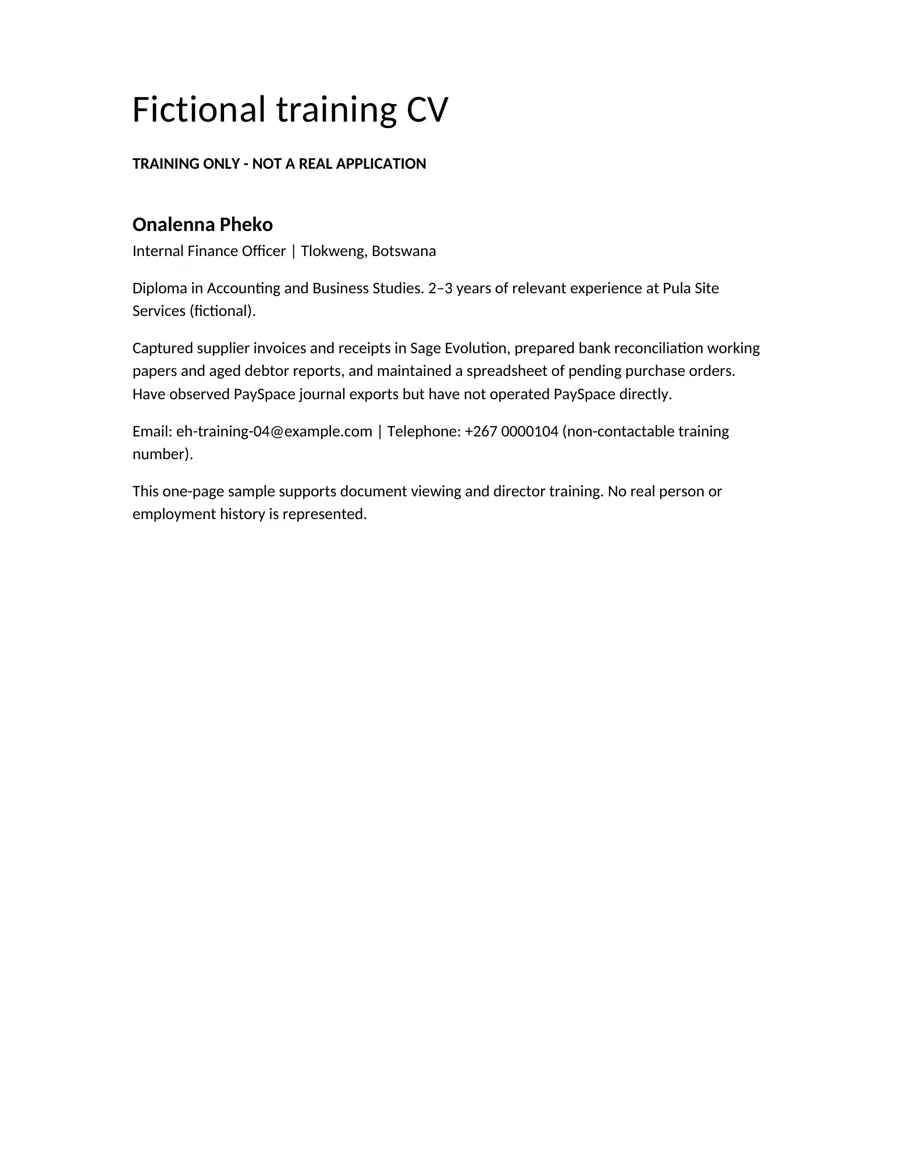
Portal documents are available to the four authorised recruitment users. Google Drive copies follow the existing folder access approved for filing; The administrator’s access cleanup is deferred.
RECORD YOUR JUDGEMENT
Use the same scale for Ownership, Judgement, Accuracy and controls, Collaboration, and Digital practice.
SELECTED STAGE
The application is being assessed.
One stage is shared by all reviewers. Agree changes with the other directors. Stages can be changed as the process requires.
Press Save review before leaving. Drafts do not save automatically. Notes have a 5000 character limit. A stage change does not email the applicant, schedule an interview or contact a reference.
Each save adds a review to the history and updates the shared current stage. Return through Application overview and reopen the record. Previous reviews shows saved stage, time and notes; saved rating values are not displayed there. The rating and note fields reopen blank for a new entry. Correct an entry by adding a clear correction note with the intended current stage.
TRY IT IN THE REAL TRAINING VIEW
Use a fictional record below. Tick each step here as you complete it in the training dashboard.
| Reference | Training applicant | What to explore |
|---|---|---|
| EH26-BDO-TRAIN01 | Kabelo Motsumi | Pipeline follow-up and tender controls |
| EH26-BDO-TRAIN02 | Tariro Ncube | Foreign-national documents and limits in evidence |
| EH26-IFO-TRAIN03 | Naledi Ramasodi | Reconciliations and payment controls |
| EH26-IFO-TRAIN04 | Onalenna Pheko | Junior experience and systems exposure |
| EH26-PHR-TRAIN05 | Boitumelo Kegomoditswe | Payroll inputs and approvals |
| EH26-PHR-TRAIN06 | Lorato Mosweu | Confidentiality and learning needs |
Compare the evidence behind your ratings with another director. There is no prescribed score or ranking for these practice records.
QUICK HELP
Clear the search, role and stage filters. Check whether you are in Training samples or Live applications. Training samples should contain six fictional records. Live applications can correctly be empty before real submissions arrive.
Reopen the application and select its document button again. Allow the portal’s new tab if your browser blocks it. Authorised individuals can open all application documents, including identity files and combined packs.
Sign in again using your assigned email and the emailed code. A new page load may need a new sign-in. Ask the system administrator to check the account if access is still refused. Never forward a sign-in code.
Keep the page open and copy your draft notes before retrying. Wait for Review saved. Avoid repeat clicks after a confirmed save. Reopen the record to inspect Previous reviews.
Include the application reference, page and exact error message. Keep identity documents and sign-in codes out of the support message.
Guide updated 16 October 2026. Campaign closes Friday 23 October 2026 at 16:00 CAT. This guide explains the review tools; it does not open applications or change an applicant’s record.